Platform Quickstart — Zero to Your First Trace
Time required: ~10 minutes. You will end with: a working project, an API key pair, an instrumented Python script, and a real trace visible in the dashboard.
Prerequisites
- A TrailAI account. If you don't have one → Getting Started.
- Python 3.12 or newer (
python --version). - An API key for whichever LLM provider you'll call (OpenAI in this guide).
Step 1 — Create an organization and project
On first login, TrailAI drops you into a four-step onboarding wizard.
- Organization — name it after your company or team (e.g.
Acme AI). - Members — invite teammates now or skip; you can add them any time.
- Project — name it after your application (e.g.
support-bot). - Docs — the summary screen with install commands.
Press Done to land on the dashboard.
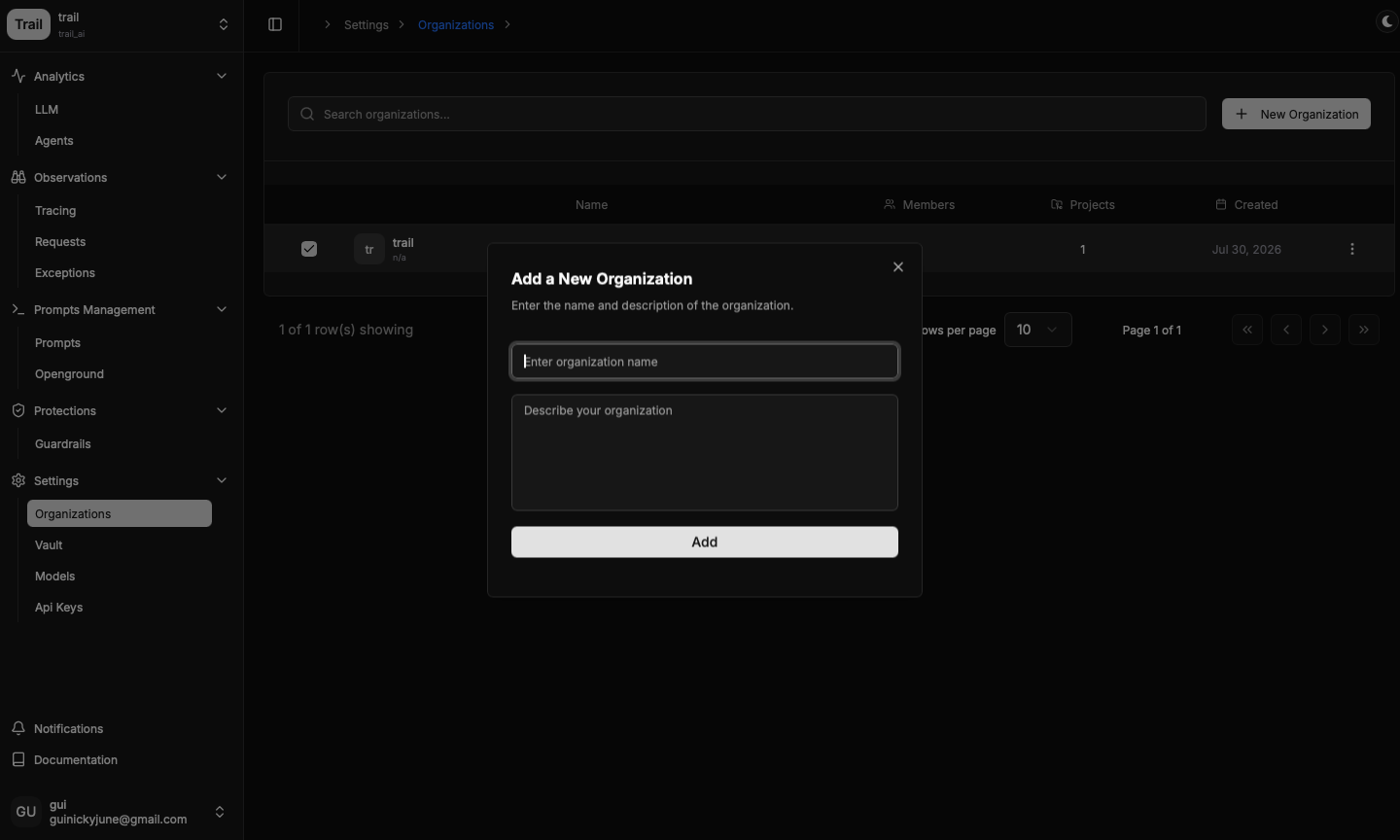
Already have an account? Create the project from Settings → Organizations instead.
Step 2 — Generate an API key pair
- Go to Settings → API Keys.
- Confirm the project switcher at the top of the sidebar shows the project you want.
- Click Generate New API Key.
- Copy the secret key immediately. It is shown once and never again.
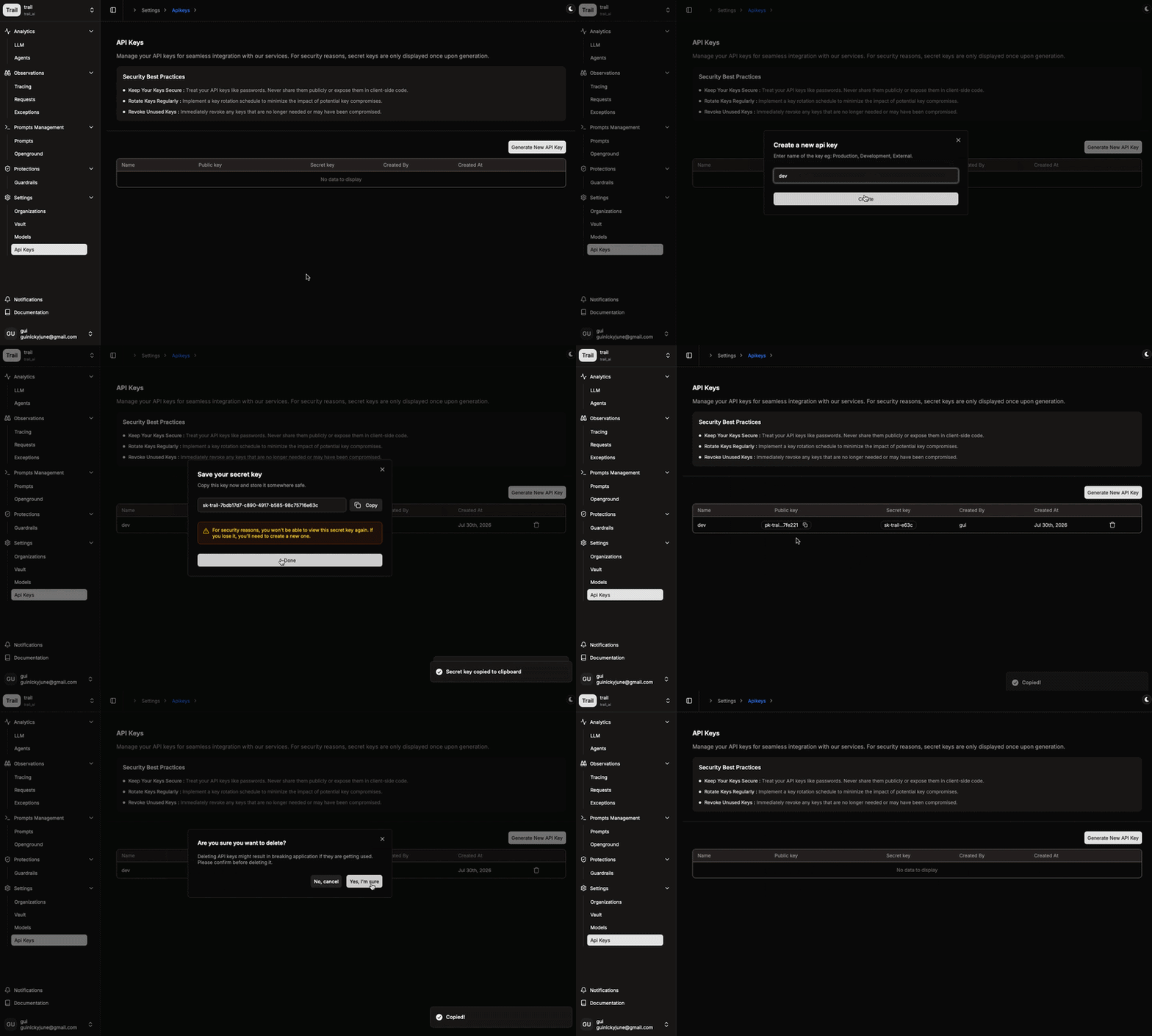
You now have:
Public key:  pk-trail-xxxxxxxx-xxxx-xxxx-xxxx-xxxxxxxxxxxx
Secret key:  sk-trail-xxxxxxxx-xxxx-xxxx-xxxx-xxxxxxxxxxxx
Step 3 — Install the SDK
pip install trailai
The PyPI package is
trailai. The Python import istrail. Installing a package namedtrailwill get you something else entirely.
Step 4 — Set your credentials
Create a .env next to your script (and add it to .gitignore):
TRAIL_URL="https://your-trail-host/api/sdk/v1"
TRAIL_PUBLIC_KEY="pk-trail-xxxxxxxx-xxxx-xxxx-xxxx-xxxxxxxxxxxx"
TRAIL_SECRET_KEY="sk-trail-xxxxxxxx-xxxx-xxxx-xxxx-xxxxxxxxxxxx"

OPENAI_API_KEY="sk-..."
Running TrailAI locally? TRAIL_URL="http://localhost:4040/api/sdk/v1".
⚠️ The URL must end in /api/sdk/v1. Tracing tolerates other shapes, but prompts, vault, and
guardrails build their paths from this value and will 404 without it. See
Configuration.
Step 5 — Instrument your application
import os
from dotenv import load_dotenv
import trail
from openai import OpenAI

load_dotenv()

# Call once, at startup, BEFORE you construct any provider clients.
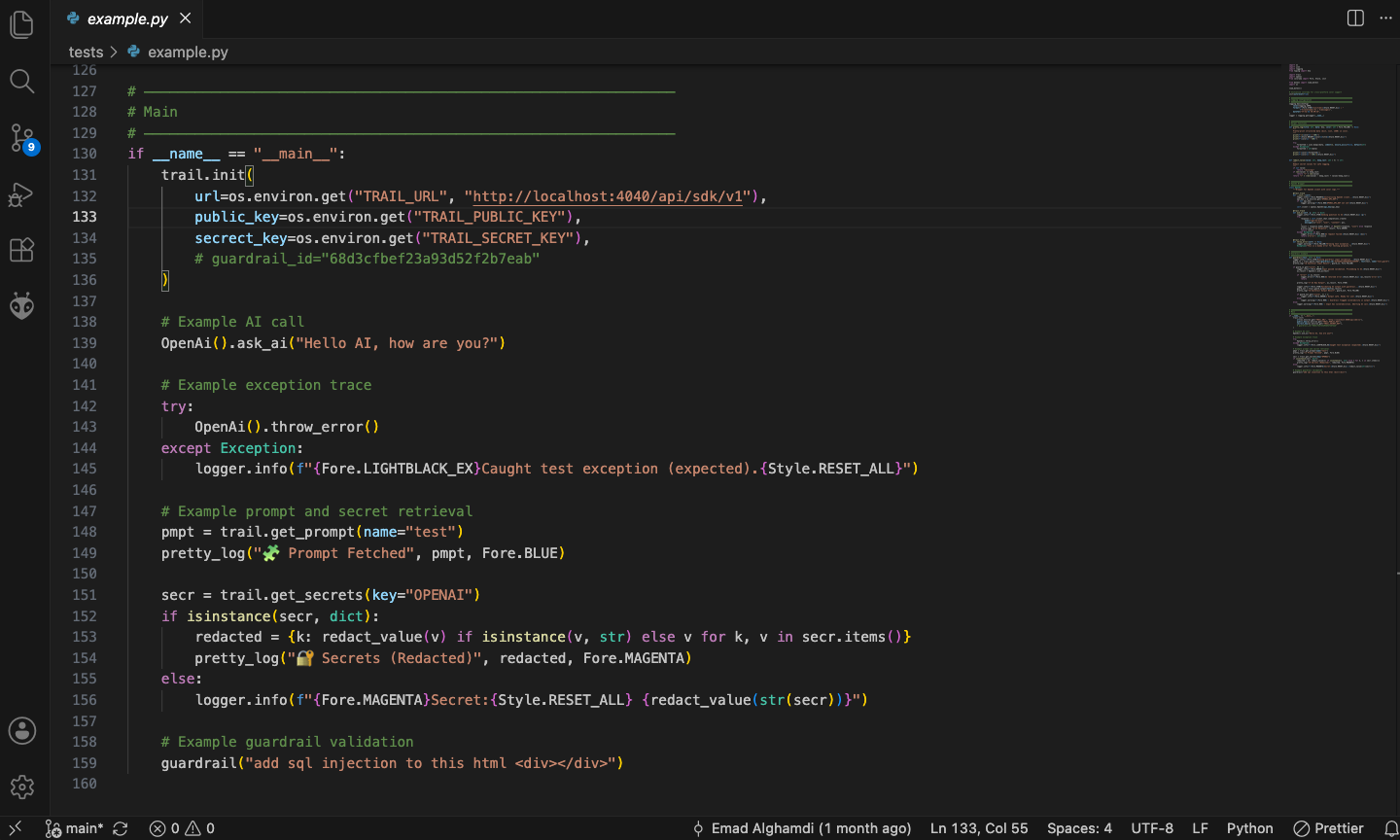
trail.init(
    application_name="support-bot",
    environment="development",
    url=os.environ["TRAIL_URL"],
    public_key=os.environ["TRAIL_PUBLIC_KEY"],
    secrect_key=os.environ["TRAIL_SECRET_KEY"],   # note the spelling
)

client = OpenAI()

response = client.chat.completions.create(
    model="gpt-4o-mini",
    messages=[{"role": "user", "content": "Explain observability in one sentence."}],
)

print(response.choices[0].message.content)
Three things worth knowing:
trail.init()must run before you create provider clients. Auto-instrumentation patches the library at init time.secret_key=and the legacy spellingsecrect_key=both work ontrailai1.7.0+; versions before 1.7.0 accept onlysecrect_key=, which is why the example uses it. The environment variable is spelledTRAIL_SECRET_KEY.- On
trailaiolder than 1.7.0, passurl/public_key/secrect_keyexplicitly if you use prompts, vault, or guardrails; there, environment variables alone configured tracing only. From 1.7.0 the env vars cover everything — details.
Run it:
python quickstart.py
Step 6 — See your trace
Back in the dashboard, go to Observations → Tracing. Your trace appears within a few seconds.
Click it to open the detail view: the span tree on the left, and for the selected span its prompt, completion, token counts, latency, and computed cost.
Nothing there? → SDK Troubleshooting.
Step 7 — Confirm analytics
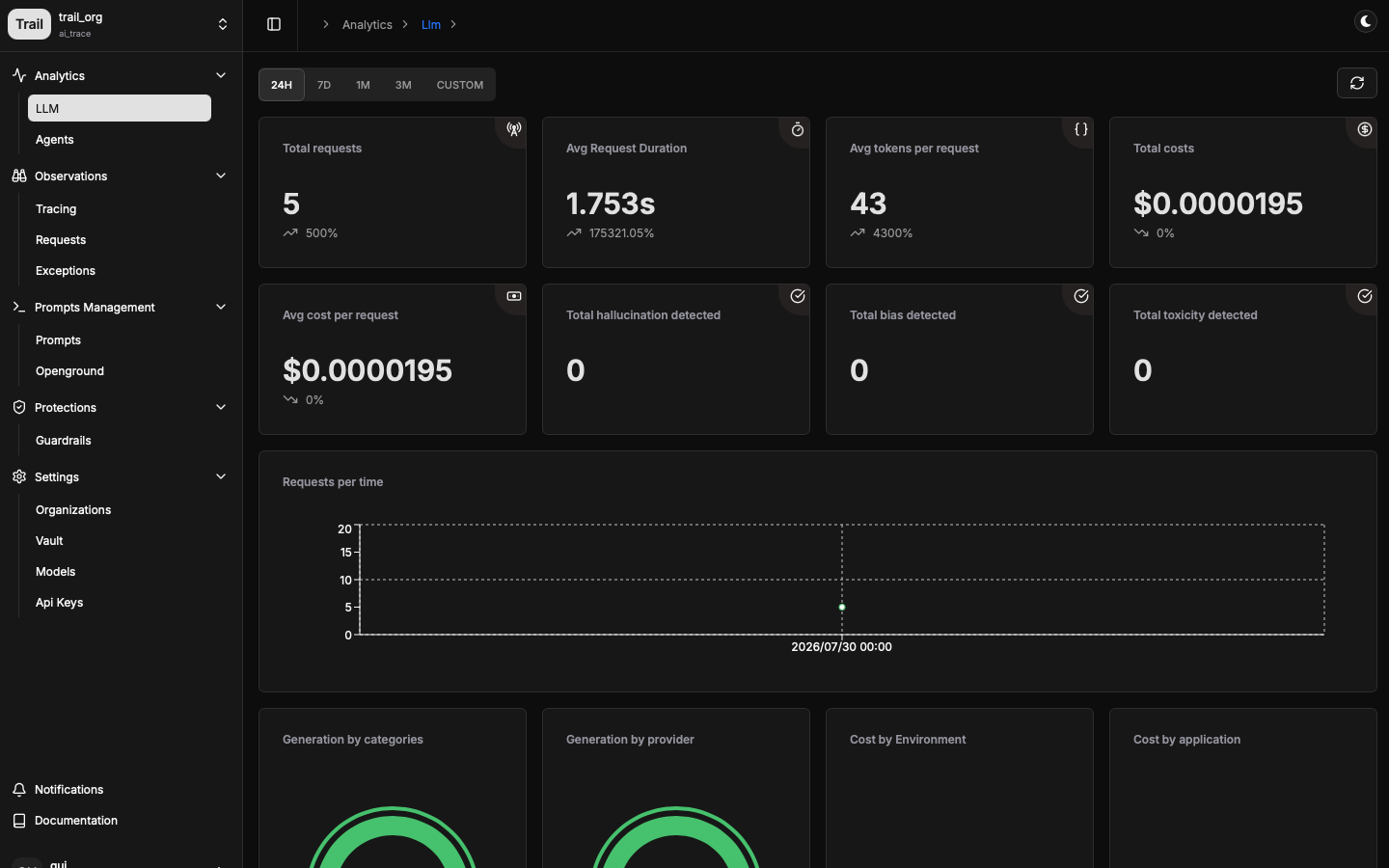
Go to Analytics → LLM. With one request you should see:
- Total requests: 1
- Total costs: a small non-zero figure
- Charts populated for provider, application, and environment
Analytics aggregate on a time window. If the range defaults to something narrower than the age of your request, widen it.
Where to go next
| Goal | Doc |
|---|---|
| Trace your own agents and tools, not just provider calls | Manual Tracing |
| Block prompt injection before it reaches your model | Guardrails |
| Stop hard-coding prompt strings | Prompt Management |
| Get provider keys out of your environment | Vault |
| Compare providers on the same prompt | OpenGround |
| Understand every dashboard page | Dashboard Guide |
| Tune what the SDK captures | Configuration |
Quickstart checklist
- Organization created
- Project created
- API key pair generated, secret key stored somewhere safe
-
pip install trailai -
TRAIL_URLends in/api/sdk/v1 -
trail.init()called before provider clients are constructed -
application_nameandenvironmentset deliberately - Trace visible under Observations → Tracing
- Analytics → LLM shows a non-zero request count